
Connect to Breathe HR
Relay automatically imports data about your employees from the official Breathe HR API and uses this to send notifications.
Relay only stores the minimum amount of data needed to be able to send relevant notifications. Data is encrypted and securely stored at rest.
Locate your Breathe HR API key
To access you API key for Breathe HR you'll need to login to Breathe and navigate to Configure > Settings > Integrations > API Setup.
Only Breathe users with the HR role can access the API key. You may need to contact your HR team or Breathe HR Partner to request the key.
For more information see the following help article from Breathe https://intercom.help/breathehr/en/articles/2089501-how-to-enable-the-breathe-api
Go to the Breathe HR settings page in Relay
Head to Settings > Connect Breathe HR. You'll need to have been given the Admin role to see this page.
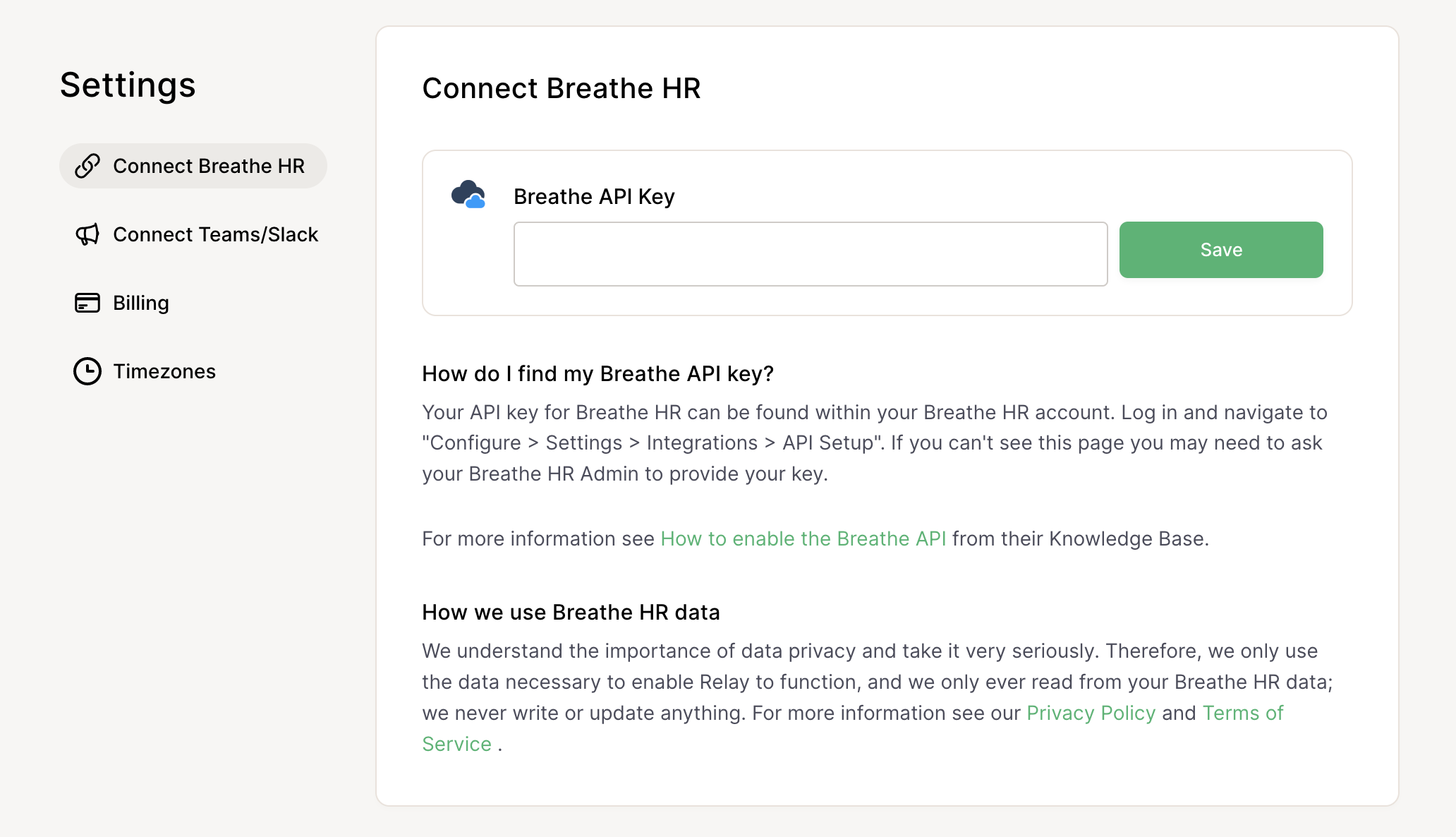
Add your Breathe HR API key
Enter your key into the Breathe API Key field and hit Save.
If you accidently use a sandbox key, Relay will present a warning but still import data from your test account.
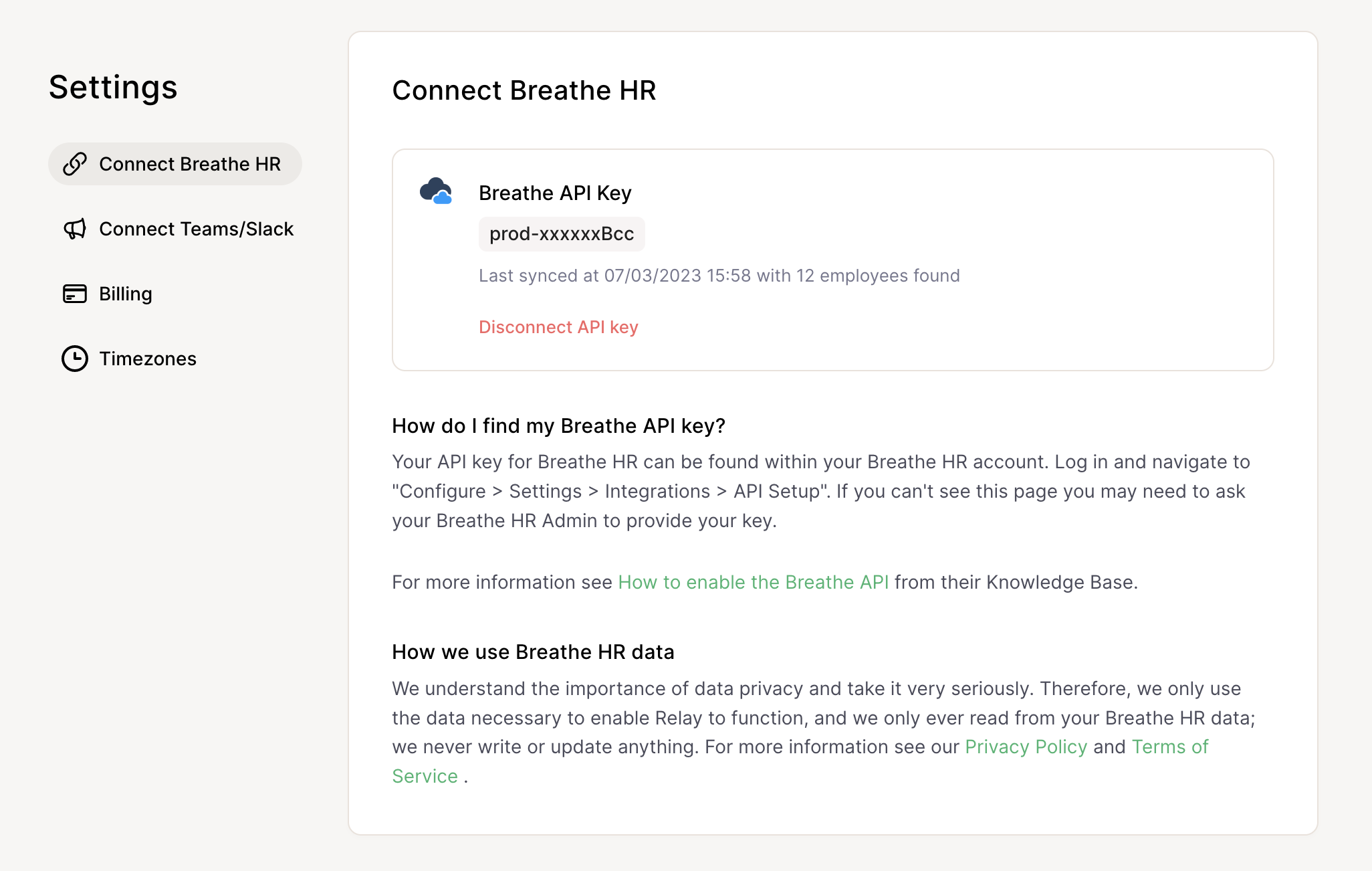
Once added, the form field disappears and an obfuscated version of your API key is shown. This allows you to check the right API key has been added without showing the full value to other users.
You'll also see details of the last time Relay synced with your Breathe HR account and how many employees were found.
How do I disconnect Relay from Breathe?
If you want to disconnect Relay from Breathe head to Settings > Connect Breathe HR and press the Disconnect API key link.
When you remove your API key, all existing imported employee data is also removed from Relay.