
Connect Teams workspace
Microsoft Teams is one of the destinations that Relay supports for sending messages.
There are a couple of steps to setup Teams with Relay. Each step requires different permissions, you may need to invite a Technical User to your Relay account to connect on your behalf if you do not have the required Microsoft permissions.
To start connecting Teams navigate to Settings > Connect Teams/Slack and press the Connect button next to Microsoft Teams.
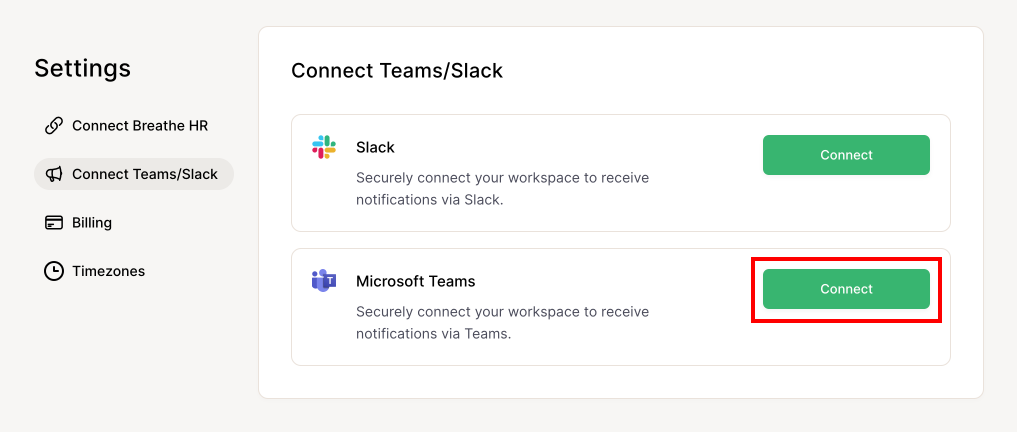
You'll be taken to the two step Microsoft Teams setup screen.
The first step is to install the Relay Teams app and messaging bot into your Microsoft tenant. To do this you'll need to be a Teams Admin for your Microsoft tenant, capable of granting the following permission:
- AppCatalog.ReadWrite.All
If you are not a Teams Admin you can invite another user to your Relay account. If you assign them the Technical role they will only be able to setup Teams/Slack but won't have access to the rest of your Relay account.
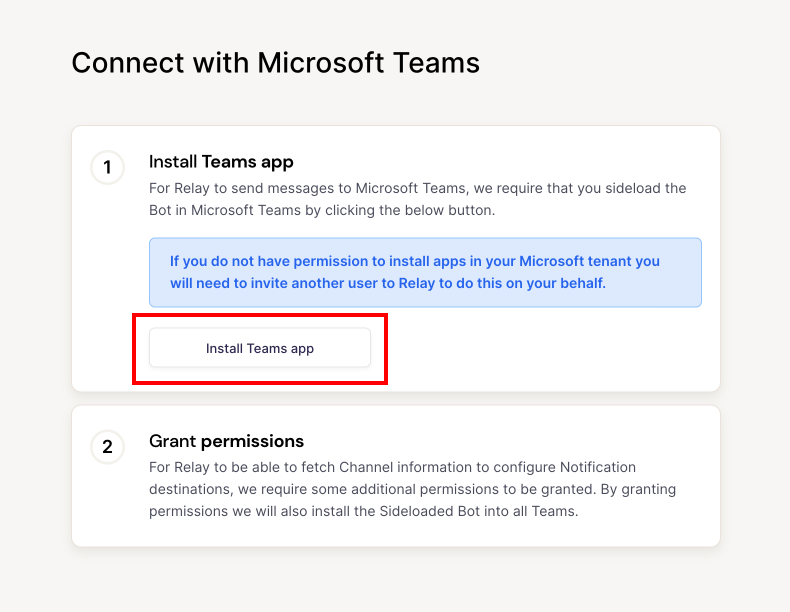
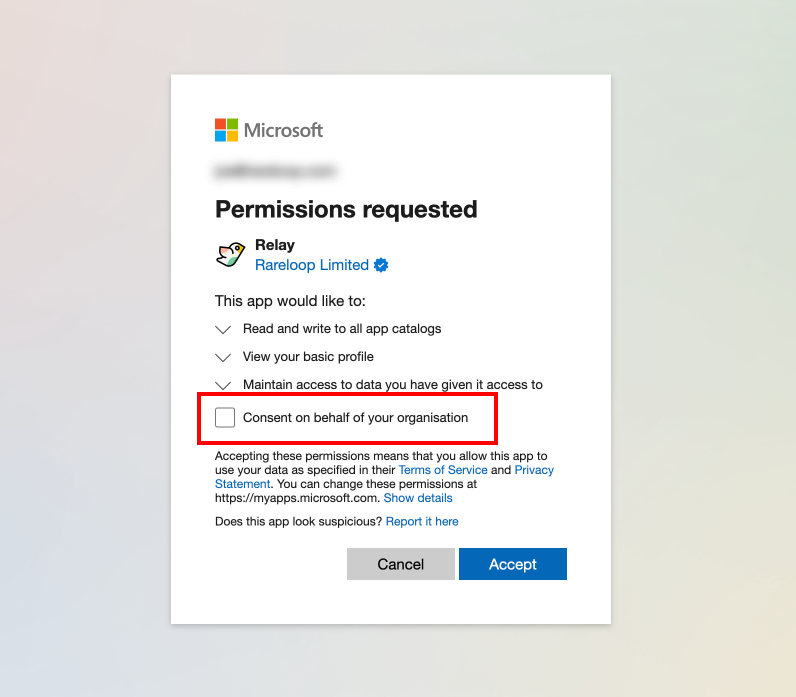
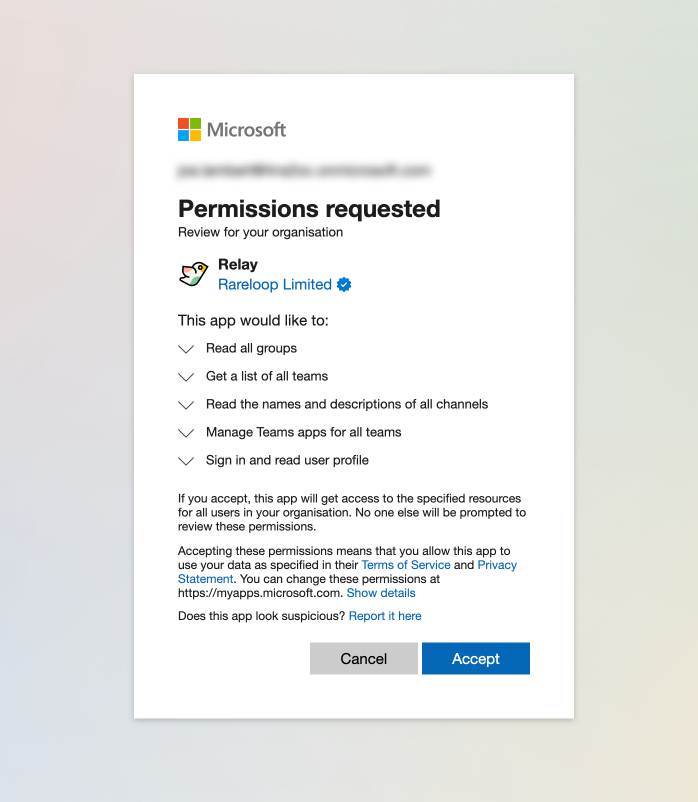
Once you click the Install Teams app button you'll be redirected to a Microsoft login. After logging in, you need to consent to the requested permissions and then press Accept.
You've now completed step 1 of the install, onto step 2. Now the app and bot have been side loaded, you now need to install them on each of your Teams.
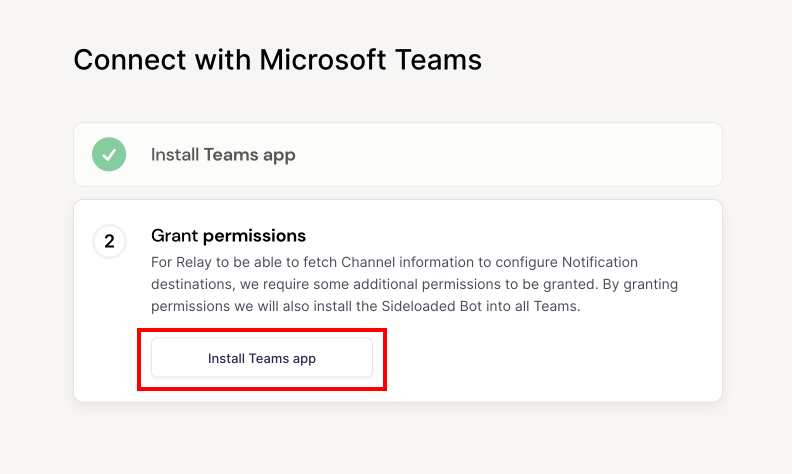
Once you've pressed the Install Teams app button you'll be redirected to another Microsoft login. You'll again be asked to accept some additional permissions which you can do by pressing Accept.
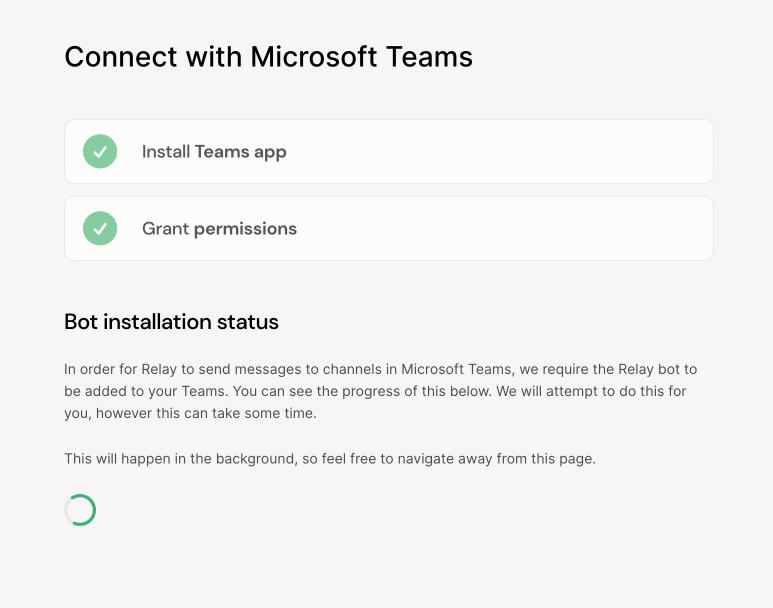
After accepting the second set of permissions, Relay will automatically attempt to setup against each of your Teams. This can take a few minutes and you'll see a loading spinner whilst work is being done.
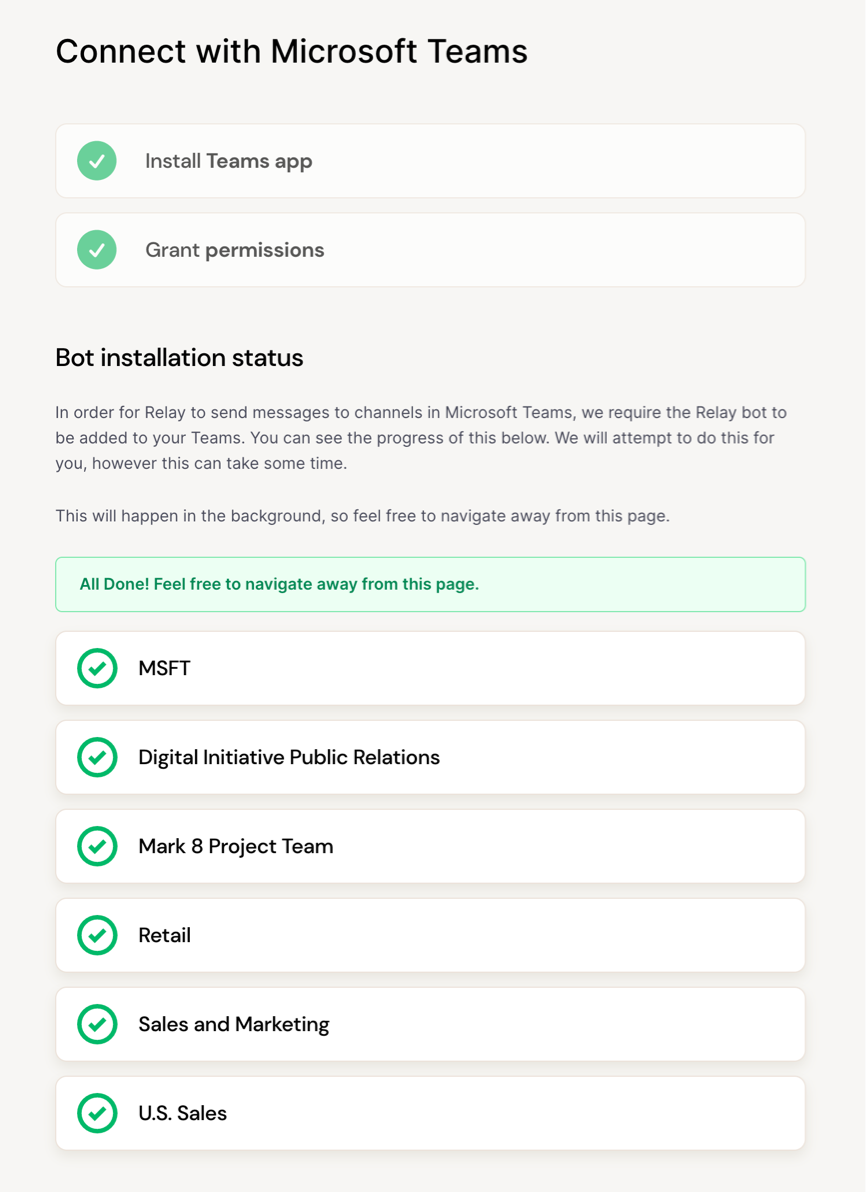
When complete, each of your Teams will show in a list with a tick next to each Team that has successfully been setup.
You've now successfuly setup Relay to work with Teams and can configure notifications to be sent to the channels of your choice.